
INSTALLATION HELP · BY INVITATION
Putting LivuFit on your phone.
Choose your phone. You then see what to do step by step, with screenshots of activation, sign-in and Android installation.
What you need
- Your invitation email
- A phone with Android 8 or newer
- About five minutes
Activate your account
Open your invitation email and tap Activate your account. The link opens in your browser. Choose a password of at least 12 characters and repeat it.
When you then see Your account is ready? This step is done. You do not need to sign in in the browser: you will do that in the app in a moment.
The link in the email works once. Used it but never set a password? Email info@livufit.nl for a new invitation.
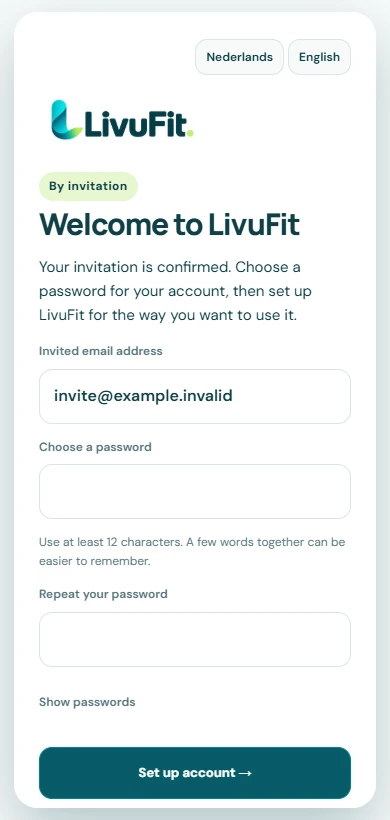
Example with a fictional account. Download the app
On your Android phone, go to livufit.nl/downloads and tap Download the APK. This is the LivuFit installation file; the Play Store version follows later.
Does Chrome ask whether to keep the file? Choose Keep or Download anyway.
Open the file
Tap the download notification at the top of your screen, or open the Files app and choose Downloads. Tap livufit-….apk.
Allow your browser to install
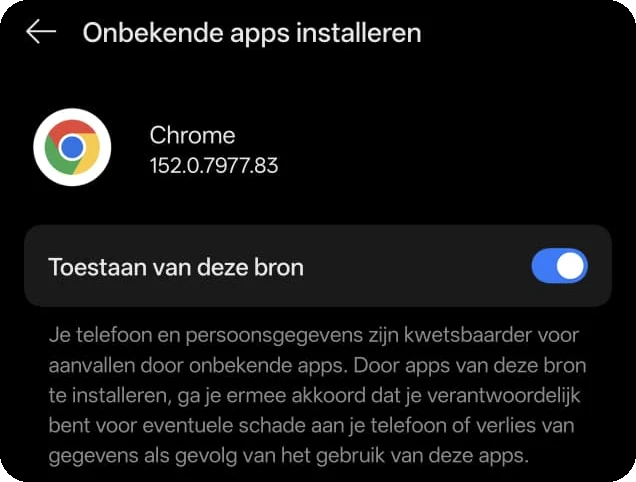
The first time, Android says your browser is not allowed to install apps yet. Tap Settings, switch on Allow from this source and go back with the arrow at the top left.
You only do this once. Android skips this step for the next update.

Install LivuFit
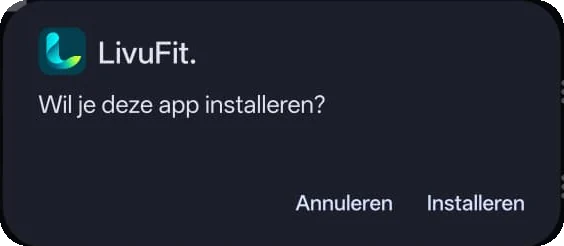
Android now asks whether you want to install LivuFit. Tap Install.
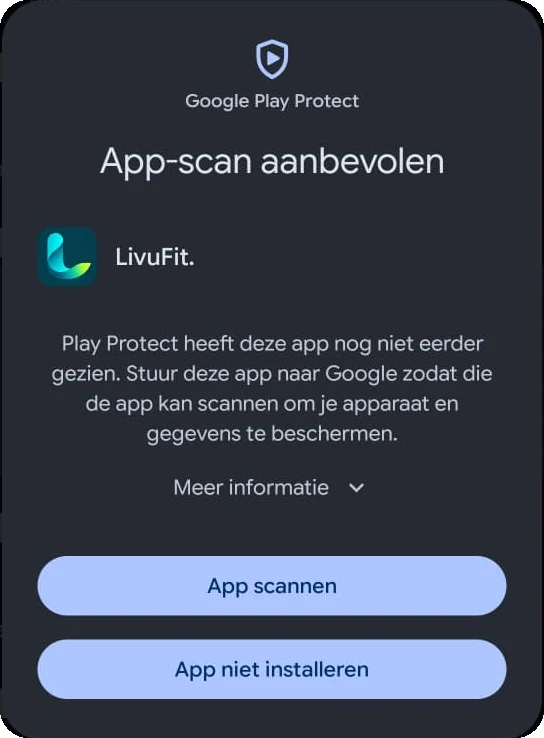
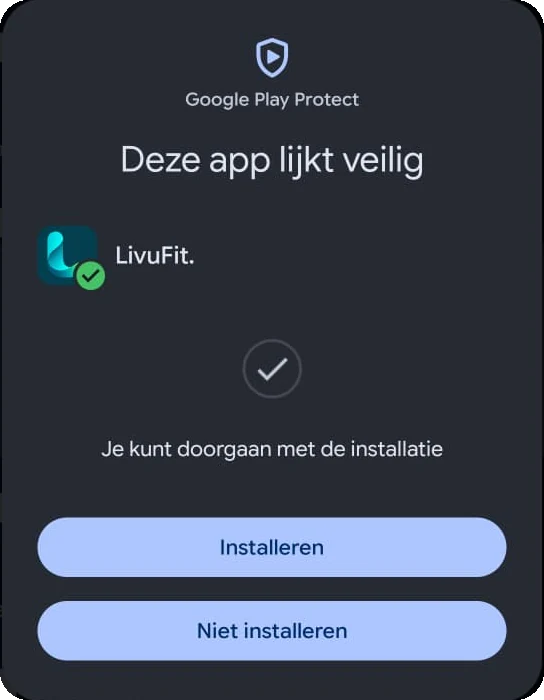
Google Play ProtectOnly if you see this screen
Sometimes Google wants to check the app first and you see App scan recommended. Tap Scan app and wait a moment. Once This app looks safe appears, tap Install.
Do not see this screen? That is fine: Google often skips the check and the installation simply continues.
Open LivuFit and sign in
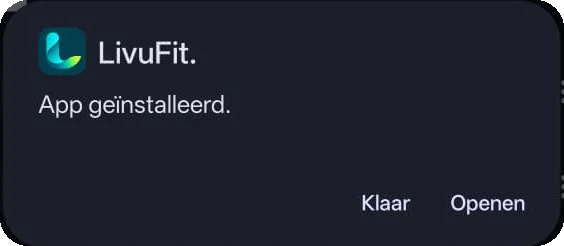
At App installed tap Open. Sign in with the email address that received the invitation and the password you chose in step 1.
LivuFit now sits among your apps. Install a newer version with the same steps; your data stays put.
What you need
- Your invitation email
- An iPhone with iOS 16 or newer
- Your Apple account for the App Store
Activate your account
Open your invitation email and tap Activate your account. The link opens in your browser. Choose a password of at least 12 characters and repeat it.
When you then see Your account is ready? This step is done. You do not need to sign in in the browser: you will do that in the app in a moment.
The link in the email works once. Used it but never set a password? Email info@livufit.nl for a new invitation.
Example with a fictional account. Install TestFlight
LivuFit reaches your iPhone through TestFlight, Apple’s free app for apps by invitation. Open the TestFlight page in the App Store and tap Get.
Already have TestFlight? Go straight to step 3.
Open the LivuFit link in TestFlight
On your iPhone, open this link: testflight.apple.com/join/45gbmwce. You reach this page through the installation help in your invitation email.
TestFlight opens and shows LivuFit. Tap Accept and then Install. LivuFit appears on your home screen.
Opening the link on a computer shows an Apple web page. Open it on your iPhone itself and it goes to TestFlight.
Open LivuFit and sign in
Open LivuFit from your home screen and sign in with the email address that received the invitation and the password you chose in step 1.
The orange dot next to the app name belongs to TestFlight and can be ignored. You can enable automatic updates in TestFlight; the App Store version follows later and works with the same account.
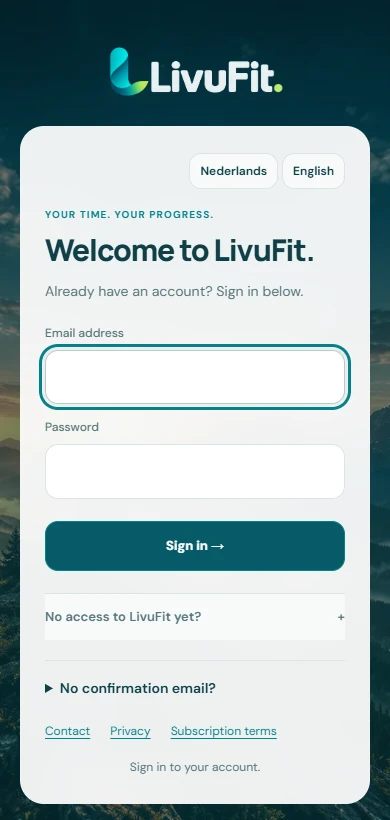
Example with a fictional account.
Stuck somewhere?
Send a message describing what you see on your screen and we will help you on.